
Quick answer: A Shopify SEO checklist is a list of checks that make sure Google can find, understand and trust your store. The 25 fixes below are sorted by day, Monday to Friday, so you can finish them in a week. Start with indexing (Day 1), then duplicates, page content, speed, and tracking. Most take 5 to 20 minutes and need no developer.
Most Shopify SEO checklists online run to 40 or 50 steps. That is useful for an agency, but a store owner with orders to pack will not finish it. So I cut mine down to the 25 fixes I look at first when I audit a store, in the order that matters most.
The first thing I check on any Shopify store: are the collection and product pages actually indexed in Google Search Console? If the pages that make money are not in Google, nothing else on this list matters yet. Then I open Google Analytics to see how the store is performing: where visitors come from, which pages they land on, and whether organic visitors buy. That is why Day 1 below is all about indexing, and Day 5 ends with tracking.
A note on the screenshots: the Shopify admin screenshots come from my own test store, the PageSpeed and Rich Results examples come from Shopify’s public Dawn theme demo store, and the Search Console example comes from a WordPress site I manage. None of them is a client store, and your own numbers will be different. All were taken on 16 Nov 2026.
Want the printable version? Download the free Shopify SEO Quick-Fix Checklist, a 20-point PDF of the most important checks, and tick items off as you go.
How to use this checklist
- Work through one day at a time. Each day takes about 45 to 75 minutes.
- Each fix has three parts: where to check, what good looks like, and how to fix it.
- You need two free tools: Google Search Console and PageSpeed Insights. If Search Console is not set up yet, that is fix #1.
- Write down what you changed and the date. In 4 weeks you will want to compare.
- It also works as a general ecommerce SEO checklist, but every admin path here is for Shopify.
Day 1 (Monday): Make sure Google can find your store
If Google cannot crawl and index your pages, nothing else on this list matters. That is why this day comes first.
Want more sales from Google?
Check your store against 20 quick fixes with the free checklist, or get the $49 Store SEO Audit.
1. Connect Google Search Console (15 min)
Check: Do you have a verified property for your domain in Search Console?
Fix: Add a Domain property and verify it with a DNS record at your domain provider, or add a URL-prefix property and verify it with the HTML tag in your theme. Domain verification covers http, https, www and non-www in one go.
2. Turn off Private mode (the store password) (2 min)
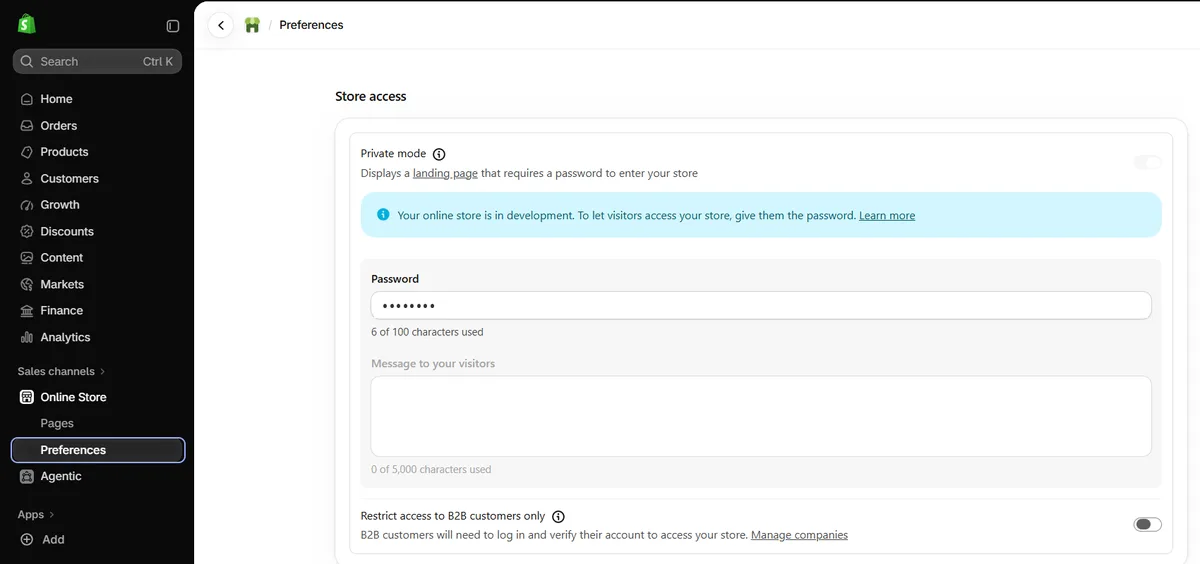
Check: Shopify admin > Online Store > Preferences > Store access. Look at the Private mode switch.
Fix: If Private mode is on, visitors and Google see a password page instead of your store. Turn it off once you are ready to sell. Note: on a free trial or development store, Shopify keeps the password on until you pick a paid plan.
3. Submit your sitemap (5 min)
Check: Search Console > Sitemaps. Is yourstore.com/sitemap.xml there with status “Success”?
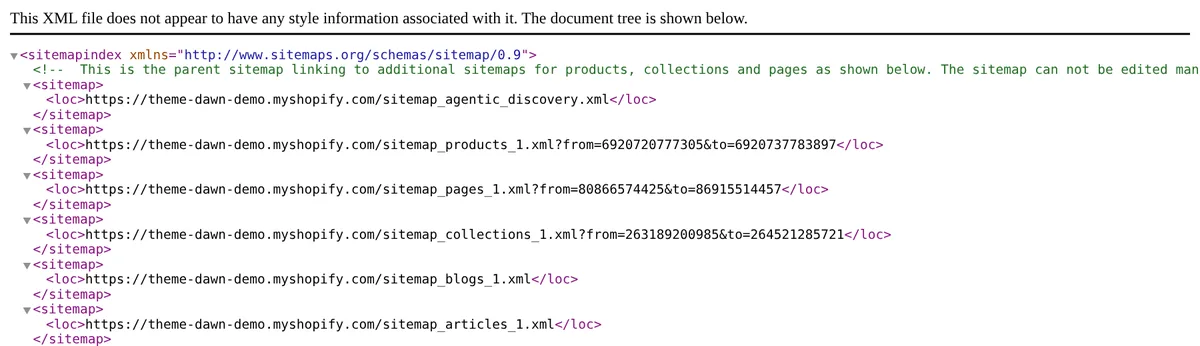
Fix: Shopify builds the sitemap for you. Just paste sitemap.xml into the box and submit. It is a “sitemap index”: one main file that points to separate sitemaps for your products, collections, pages and blog posts. Shopify keeps them up to date on its own, so you only submit the main one.
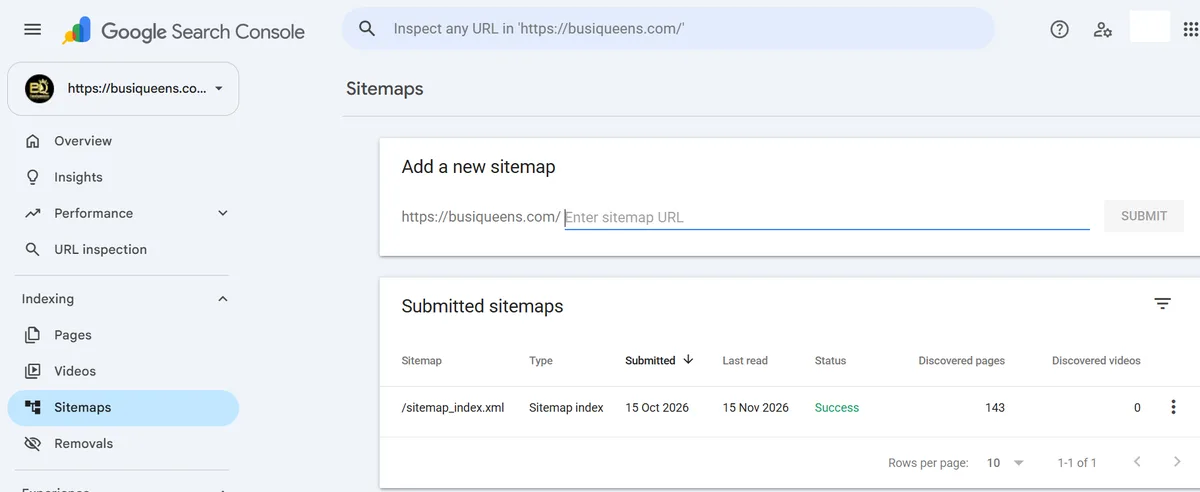
Once submitted, this is what a healthy result looks like in Search Console: status Success, a recent “Last read” date and a count of discovered pages.
4. Check your key pages are indexed (15 min)
Check: Search Console > Pages. Then use URL Inspection on your homepage, your top 3 collections and your top 5 products.
Fix: For any key page that is not indexed, read the reason. “Crawled, currently not indexed” usually means the page looks thin or too similar to another page (fixes 10 to 14 help). “Discovered, currently not indexed” usually means Google has not got to it yet, so link to it from your menu or homepage.
5. Make sure nothing important is set to noindex (10 min)
Check: Open a product page, right-click > View page source, and search for noindex.
Fix: If you find it on a page you want in Google, it usually comes from an app or a theme setting. Turn that setting off or ask the app’s support team.
6. Use one main domain (5 min)
Check: Type the http, https, www and non-www versions of your domain. All four should land on the same address.
Fix: Shopify admin > Settings > Domains. Set your primary domain and make sure the others redirect to it.
Day 2 (Tuesday): Stop duplicate and broken pages
Shopify does a lot for you here, but a few things still slip through on most stores I look at.
7. Link products to their main URL (20 min)
Check: On a collection page, hover over a product. Does the link go to /products/name or to /collections/name/products/name?
Fix: Shopify adds a canonical tag that points to /products/name, so this is not a disaster. But linking to the collection version all over your site sends mixed signals and wastes crawling. Many themes have this fixed already. Shopify’s own Dawn theme, for example, links products straight to /products/name. If yours does not, a developer can usually change it in the product card snippet in under an hour.
8. Redirect old pages that still get traffic (20 min)
Check: Search Console > Pages > “Not found (404)”.
Fix: For each URL that used to be a real product or collection, add a 301 redirect to the closest live page. In Shopify admin, search “URL redirects” to find the screen.
9. Keep the redirect box ticked when you rename a URL (2 min)
Check: When you change a product or collection URL handle, Shopify shows a “Create a URL redirect” box.
Fix: Always leave it ticked. If you renamed pages in the past without it, add those redirects by hand (fix 8).
10. Keep thin tag and filter pages out of Google (15 min)
Check: Search Google for site:yourstore.com/collections and look for tag or filter pages with almost no content.
Fix: If a filtered page has real search demand (for example “black running shoes”), make it a proper collection with its own text. Keep the rest out of the index with a theme setting, an SEO app or a small robots.txt.liquid edit by a developer.
Day 3 (Wednesday): Make your pages worth ranking
Once Google can find your pages, it has to decide which ones deserve to rank. This day is where most stores have the biggest gap.
11. Give every key page its own title tag (20 min)
Check: Open a product or collection, scroll to the bottom to Search engine listing, and click the pencil icon. No two pages should share a title.
Fix: Write a unique title under about 60 characters. A simple pattern that works: product type + key detail + brand. Example: “Organic Cotton Baby Romper, 0 to 12 Months | Brand Name”.
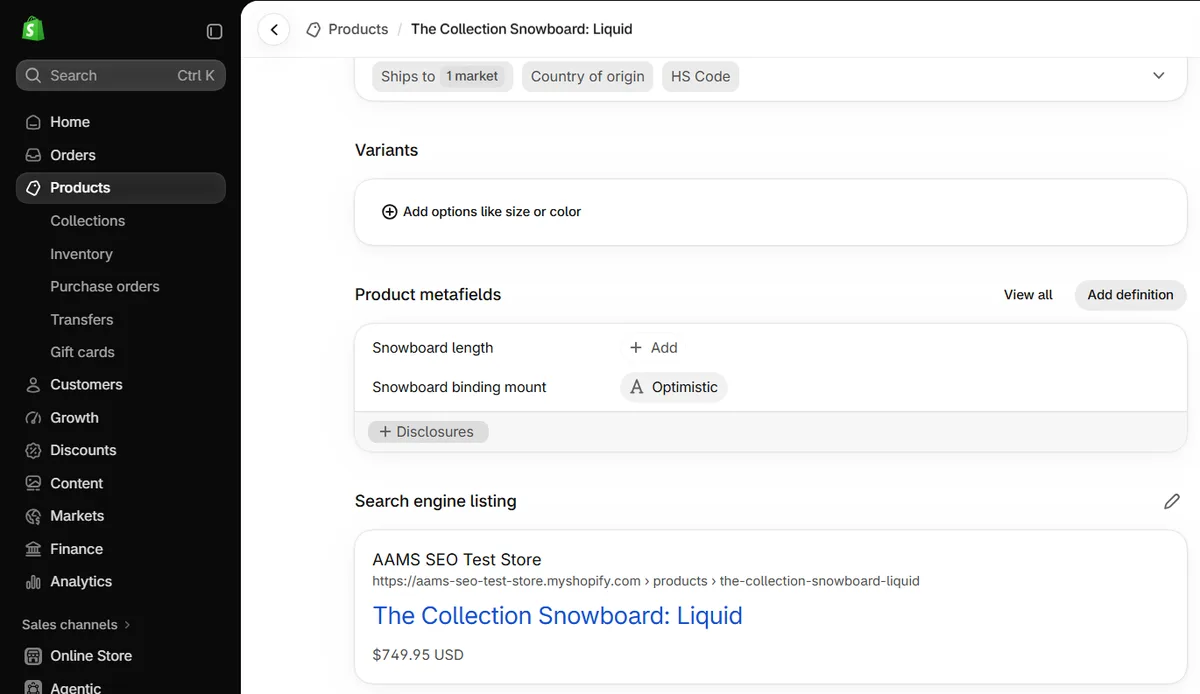
12. Write meta descriptions for your top 10 pages (25 min)
Check: The same “Search engine listing” box. Is it empty, or does it just repeat the first line of the description?
Fix: Write 140 to 155 characters that say why someone should click: who it is for, one real benefit, and one practical detail (free shipping, sizes, materials). Google does not always use it, but a good one helps your clicks when it does.
13. Add a short intro to your top collections (20 min)
Check: Open your 3 biggest collections. Is there any text, or only a grid of products?
Fix: Add 2 to 4 helpful sentences above or below the grid: what is in the collection, who it is for, and how to choose. Collection pages often rank for broader searches than product pages, so they need words Google can read.
14. Write product descriptions in your own words (20 min for your top 5)
Check: Copy one sentence from a product description and search for it in Google with quote marks. If other stores show up with the same text, it is duplicate content.
Fix: Rewrite your 5 best sellers first. Cover who it is for, materials, sizes, how to use it, care, shipping and returns. Answer the questions customers email you about.
15. Add alt text to product images (15 min)
Check: Product > Media > click an image > “Add alt text”.
Fix: Describe what the image shows in plain words, like “navy linen shirt, front view”. It helps Google Images and shoppers who use screen readers.
16. Link between related pages (15 min)
Check: Do your product pages link to their collection? Do your blog posts link to the products they mention?
Fix: Add 2 or 3 links from each blog post to relevant collections or products, and make sure every product is reachable from a collection in your main menu. Pages with no internal links are hard for Google to find and rank.
Day 4 (Thursday): Make your store faster
Speed matters for SEO, but it matters even more for sales. A slow product page loses buyers before they see the price.
17. Test your Core Web Vitals (15 min)
Check: Run your homepage, one collection and one product page through PageSpeed Insights on mobile.
Fix: Google’s “good” targets are LCP 2.5 seconds or less, INP 200 ms or less, and CLS 0.1 or less (source: web.dev). If the top of the report says there is not enough real-user data, use the lab score as a guide and focus on the issues it lists.
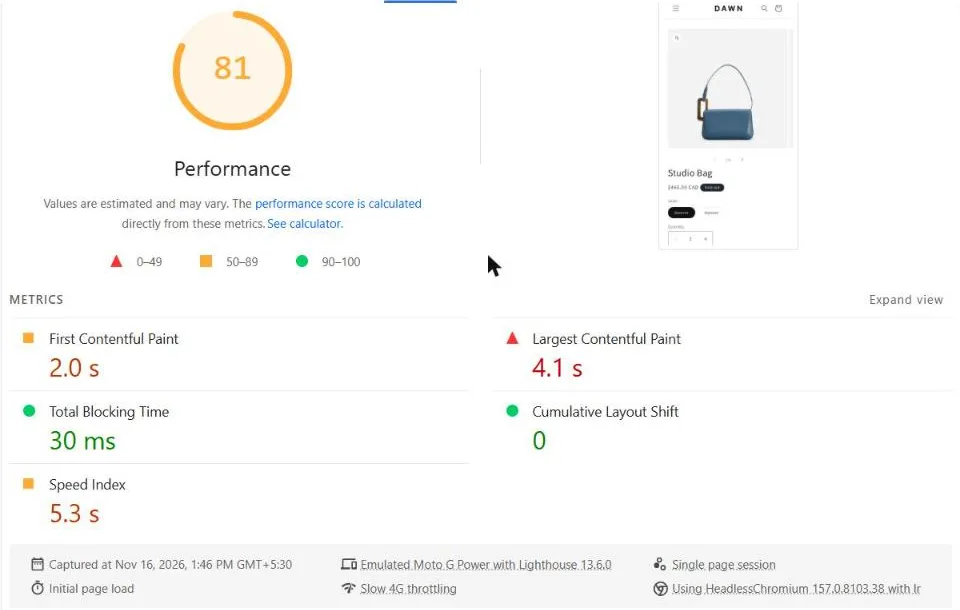
What this shows: even Shopify’s own clean demo theme has a mobile LCP above 2.5 seconds in the lab test, and that is before any apps, reviews widgets or chat buttons are added. So do not panic if your score is not green. Look at which element is the LCP (usually the main product image) and work on that first. Lab results also change from run to run, so test 2 or 3 times and compare.
18. Remove apps you no longer use (20 min)
Check: Shopify admin > Apps. Is there anything you have not used in the last month?
Fix: Uninstall it. Then check your theme for leftover code from that app, because some apps leave scripts behind that still load on every page. A developer can clean this up quickly.
19. Compress your big images (20 min)
Check: In PageSpeed, look for “Properly size images” and find out which image is your LCP element.
Fix: Upload images no wider than they are shown (around 2,000 px is plenty for most product photos). Keep the main hero image small, and never lazy-load the first image people see.
20. Keep the top of the page light (15 min)
Check: Do you have a slider, an autoplay video or a popup that loads right away?
Fix: Replace sliders with one strong image. Delay popups until the visitor scrolls or has been on the page for a few seconds. Both help speed and stop the layout from jumping around.
Day 5 (Friday): Build trust and measure results
The last day makes sure Google trusts your product data and that you can actually see what SEO brings in.
21. Test your product structured data (10 min)
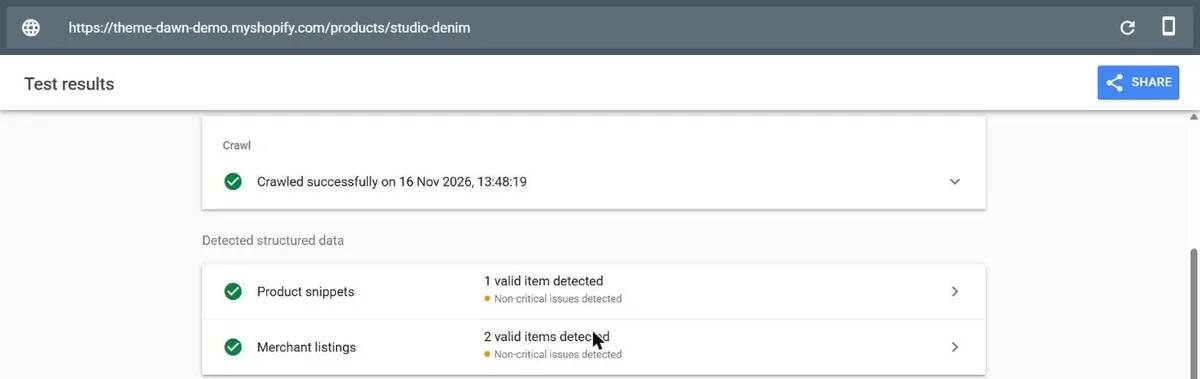
Check: Paste one product URL into Google’s Rich Results Test.
Fix: Fix any errors in price, availability or image. Most Shopify themes include Product markup already. (More on this in my guide to schema markup for AI search.) If an app adds a second copy, you can end up with duplicates, so keep only one. Show review stars only for real reviews.
22. Fill in your shipping and returns policies (15 min)
Check: Shopify admin > Settings > Policies. Are your refund and shipping policies filled in and linked in the footer?
Fix: Write them clearly. Shoppers look for them before buying, and they are part of what makes a store look trustworthy to Google too.
23. Track sales from Google (20 min)
Check: Google Analytics 4 > Reports > Acquisition > Traffic acquisition. Can you see Organic Search with purchases next to it?
Fix: Connect GA4 through the Google and YouTube app in Shopify (once only, not twice), make a test purchase or check the purchase event, and link Search Console to GA4.
24. Make sure AI search can read your store (10 min)
Check: Open yourstore.com/robots.txt. Is anything blocking OAI-SearchBot (ChatGPT search) or PerplexityBot?
Fix: If you want to show up in AI answers, do not block these search crawlers. Also make sure your store name, description and policies say the same thing on your site, your Google Business Profile and your social profiles. I explain this in more detail in how to improve AI search visibility.
25. Set a date to check again (5 min)
Check: Put a reminder in your calendar for 4 weeks from today.
Fix: On that day, open Search Console > Performance and compare clicks and impressions with today. SEO changes take weeks to show, so do not judge them after 3 days.
What to do first if you only have one hour
If this week is too busy, do these five and leave the rest for next week:
| Priority | Fix | Why |
|---|---|---|
| 1 | #2 Remove the password | Nothing ranks behind a password |
| 2 | #3 Submit your sitemap | Helps Google find every product |
| 3 | #4 Check key pages are indexed | Shows what Google can and cannot see |
| 4 | #11 Unique title tags on top pages | Affects both rankings and clicks |
| 5 | #17 Test Core Web Vitals | Finds the speed problems that cost sales |
Want me to check it for you?
If you would rather have someone go through your store, my $49 Store SEO Audit covers these checks and more. I rank the top fixes by their likely impact on sales and record a video walkthrough of what I found. See how it works.
Or start with the free version: download the Shopify SEO Quick-Fix Checklist.